I often wondered, what is the best backup plan to use for my computer? As a good backup plans will allow me to restore my computing environment to its pre-disaster state with a minimum of fuss. Unfortunately, no single backup plans fits everyone's computing style or budget. So, you must devise your own backup plan that's tailored to your particular computing needs. I will just give you the outlines factors you should consider as you formulate your own backup plan.
Here are the checklist:
- Decide of how much of your data you want, need, and can afford to back up.
- Create a realistic schedule for making backups.
- Make sure you have a way to avoid backing up files that contain viruses.
- Find out what kind of boot disks you might need to get your computer up and running after a hard disk failure or boot sector virus attack.
- Make sure you can test your restore procedure so that you can successfully retrieve the data you've backed up.
- Find a safe place to store your backups.
- Decide what kind of storage device you'll use to make backups.
- Select software to handle backup needs.
Tuesday, December 16, 2008

Using Windows ReadyBoost
This is an elaboration on what I have written before(Article post by Mikenamz, December 15, Fasten Up Your Vista Performance Now!!!). At first I was thinking of editing the present article, but after thinking through about it, i thought why not I make another article explaining on what and how to use the Windows ReadyBoost. Hope this will help the users on understanding this awesome feature.
The Windows ReadyBoost is one of the pros of Windows Vista. It enables you to plug a Universal Serial Bus (USB) flash drive or Secure Digital (SD) memory card into your computer and have Windows Vista have it as memory. This is a benefit for people who is using Vista and wants to improve their PC's memory resources and at the same time wants to reduce the cost needed to upgrade the memory of the PC(Machines upgrade can be difficult and costly, moreover, some machines have limited memory expansions capabilities, making it impossible to add RAM). Windows ReadyBoost allows Windows Vista to service normal disk 80 - 100 times faster than random reads from traditional hard drives. In addition, there are some requirements for a device to be compatible to use the ReadyBoost option.
For a device to be compatible and useful it must conform to the following requirements:
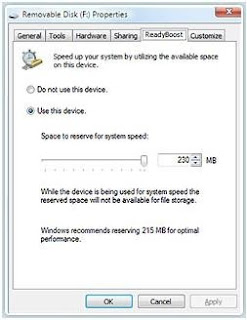
It is easy to use Windows ReadyBoost. You just have to plug in the USB flash drive or SD memory card to your machine first. Then Windows will check if the performance of the device is fast enough to work with Windows ReadyBoost. If the device is fast enough, you will be ask if you want to use the device to spped up our system. Here is a sample window picture of it.

If not, a window like below will appear.
So, in a nutshell, try this yourself and you'll see the benefits of ReadyBoost.
* The Windows ReadyBoost feature is included in Windows Vista edition Home Basic, Home Premium, Business and Ultimate
The Windows ReadyBoost is one of the pros of Windows Vista. It enables you to plug a Universal Serial Bus (USB) flash drive or Secure Digital (SD) memory card into your computer and have Windows Vista have it as memory. This is a benefit for people who is using Vista and wants to improve their PC's memory resources and at the same time wants to reduce the cost needed to upgrade the memory of the PC(Machines upgrade can be difficult and costly, moreover, some machines have limited memory expansions capabilities, making it impossible to add RAM). Windows ReadyBoost allows Windows Vista to service normal disk 80 - 100 times faster than random reads from traditional hard drives. In addition, there are some requirements for a device to be compatible to use the ReadyBoost option.
For a device to be compatible and useful it must conform to the following requirements:
- The capacity of the removable media must be at least 256 MB (250 after formatting)
- Devices larger than 4 GB will have only 4 GB used for ReadyBoost
- The device should have an access time of 1 ms or less
- The device must be capable of 2.5 MB/s read speeds for 4 KB random reads spread uniformly across the entire device and 1.75 MB/s write speeds for 512 KB random writes spread uniformly across the device
- The device must have at least 235 MB of free space
- NTFS, FAT16 and FAT32 are supported (Windows 7 and Vista SP2 will support also the new exFAT filesystem)
- The initial release of ReadyBoost supports one device. The recommended amount of flash memory to use for Windows ReadyBoost acceleration is one to three times the amount of RAM installed in your computer.
It is easy to use Windows ReadyBoost. You just have to plug in the USB flash drive or SD memory card to your machine first. Then Windows will check if the performance of the device is fast enough to work with Windows ReadyBoost. If the device is fast enough, you will be ask if you want to use the device to spped up our system. Here is a sample window picture of it.

If not, a window like below will appear.

So, in a nutshell, try this yourself and you'll see the benefits of ReadyBoost.
* The Windows ReadyBoost feature is included in Windows Vista edition Home Basic, Home Premium, Business and Ultimate
Monday, December 15, 2008
Fasten Up Your Vista Performance Now!!!
It has been a year since Vista had been released. Now more and more people shifting to Vista. With lots of graphical features available, such as aero transparency, flip 3D it will mostly leads to a performance hit.
If you think that your Vista’s performance lagging, here are some steps you can take to make it faster:
If you think that your Vista’s performance lagging, here are some steps you can take to make it faster:
- Add more RAM
- Anyone who have uses Vista knows that Vista is one memory hog operating system. While 1GB of memory looks super on Win XP, it’s the opposite on Win Vista. Forget about the graphical features in Vista, with 1GB you can barely run three applications at one time. If you are still running Vista with 1GB I would suggest you to equip your system with at least 2GB of RAM.
- Get a good video card.
- Today video cards play an important role in influencing the computer performance unlike 5 years ago. With Vista Graphical feature such as Aero, Flip 3D, and many more a good or great video card is needed to run the Vista smoothly. If you are short of budget and did not care much about the entire graphical feature provided by Vista I suggest you turn off all the unneeded graphical features such as Vista Sidebar and Vista Aero (excluding Vista Home Basic Edition).
- Vista Sidebar is one of the great features that Vista has. Although I said that, it comes of no use if we don’t make use of the applets. If you find that the sidebar is of no use to you, you should turn it off and disable it for good.
- To turn it off - “right-click” the sidebar >> Close
- To disable it – “right-click” the sidebar >> Properties >> Uncheck the "Start Sidebar when Windows starts" checkbox.
- Vista Aero is the feature that provides the users with cool glassy and 3D effect. To those who are struggling with their Vista, it is wise for them to turn it off. The best way to turn off Vista Aero is told below:
- To turn it off – “right-click” on Computer(My Computer) >> Properties >> Advanced System Settings(on Tasks) >> On Advanced tab click on Perfomance's Settings Button >> On Visual effects tab choose Custom and check any feature you would like to run.
- If you choose to uncheck all the checkbox don’t be surprise if your window turns much like Windows Classic Themes.
- Windows ReadyBoost
- Ok this is the best way to increase your memory without buying any new RAM. With ReadyBoost, user will be able to increase their memory with their available flash disk. How cool is that. For those user who have limited memory expansion capabilities this will most probably their life savers, but there’s a catch, Vista will first checks on your flash disk to see if its see if its performance is fast enough to work with Windows ReadyBoost. If it doesnt, you won’t be able to improve your memory any time soon.
- Ok this is the best way to increase your memory without buying any new RAM. With ReadyBoost, user will be able to increase their memory with their available flash disk. How cool is that. For those user who have limited memory expansion capabilities this will most probably their life savers, but there’s a catch, Vista will first checks on your flash disk to see if its see if its performance is fast enough to work with Windows ReadyBoost. If it doesnt, you won’t be able to improve your memory any time soon.
- Stop Unneeded Starts Up Programs
- Ever wonder why it took so long just to load your operating system? Well it’s mostly related to too many starts up programs running when the operating system starts to load.
- Use Windows System Tools.
- Often most of the users do not know of the Windows System Tools or scared of using it since there are afraid if the disk cleanup or defragmentation will delete their files or change any PC’s configuration.
- Well that’s easy enough to solve it isn’t it. All you users need to do is understands what the various system tools does. A good reference on defragmentation can be found at this link
- I’ll explain briefly on what disk cleanup does. Well like the name suggest, the disk cleanup will clean your disk good. But what exactly it cleans? Well for starters it lets you choose from various things such as Recycle Bin, Temporary files, Temporary Internet files, Hibernation Files cleaner, and many other things that will be opt to you.
- By doing both disk cleanup and defragmentation on a system which you have never defrag or cleanup, you’ll be surprise with how much your system will improves.
- I’ll be posting an article on the various system tools later in another article. So hope all of you be waiting for it.
Wednesday, December 3, 2008
Enter Windows 7
It has been nearly two years since the release of Windows latest OS, Vista. Now comes a new Microsoft Windows, enter Windows 7. Microsoft produce this OS for use on personal computers, including home and business desktops, laptops, Tablet PCs and media center PCs. Windows 7 is build based on the Windows Vista. Some said that it is the savior of the struggled Vista and others, another disaster. No matter what the small percentage of users said, there are no doubt many new, noticeable, and great feature. Below I listed 5 great features which are worth to mention here:
- UAC's Great Improvement
- Finally, what users have been waiting for, a UAC(User Account Control) which you can fully control. For those who are new to the term, UAC is (taken straight from Wikipedia.com) a technology and security infrastructure introduced with Microsoft's Windows Vista Operating System. It aims to improve the security of Microsoft Windows by limiting application software to standard user privileges until an administrator authorizes an increase in privilege level. In Vista you either turn it off or let it bother you everytime you are opening an apllication. Now with Windows 7, you are given four choices, these are, never notify, only notify me when programs try to make changes to my computer, always notify me, and always notify me and wait for my response. With these option users can control the UAC further.
- A Better Taskbar
- Even though it does not come with the pre-beta, it is still one of the most talked about feature in Windows 7. This is due to the to its beautiful made taskbar that look a lot like the Mac OS X dock. Another feature of the taskbar is it is able to show all the running programs in a thumbnail list and if you hover over one of the thumbnail a window representing the program will appear. If you hover in one of the window the other window will become transparent thus the window you selected will be fully reveal.
- You can watch the demo by following this link. This is by no means my video. Im only providing the link to the video.
- Easy Networking
- It is now easy to set up a group of networking inside your house. Now you can share pictures, music, videos, documents and devices such as a printer easily. This is great especially for home users who find it difficult in configuring their own home network. This networking feature is called Homegroup, now even a total novice can set up their own home network.
- Libraries
- The name says it all, with Libraries, Windows 7 will sort all your files into their own specific folders depending on their content. Instead of trashing all of the files in the Document file like before, Windows 7 keep all of the files in a specific folder according to their content's type.
- The name says it all, with Libraries, Windows 7 will sort all your files into their own specific folders depending on their content. Instead of trashing all of the files in the Document file like before, Windows 7 keep all of the files in a specific folder according to their content's type.
- Enter Touch-Screen
- Finally here comes an OS build with touch-screen capability for the Personal Computer's user. Not only that it is touch-screen but it also is a multi-touch screen, this means that the screen may work even with multi touch.
- For a demo on this feature you may watch it here. Again this is not my video, I am merely providing the link to the video.
Wednesday, November 19, 2008
Optimizing your Computer
Are you one of those people who think they have a slow computer? Have you ever thought of solving this problem? Look no further this article will guide you on how to optimize your PC for a better performances.
Malware is your Enemies
Malware such as viruses, Trojans, worms, spywares, and adwares are said to be the main cause of a slow PC. The first thing we need to do is get rid of as many malware possible away from our system.
You can do so by using any of Anti-Malware software. Examples of Anti-Malware software are Spybot-Search and Destroy, Avast Home Edition, AVG Anti-Virus, and many other anti-virus softwares which are available to you for free.
Always remember to cleanup your disk before scanning your computer with the Software. This will delete temporary and other unnecessary files from your hard disk and futher reducing scan times.
Get the latest OS updates
OS updates such as Windows Updates are important to optimize performance and error free operation.
Tweak your PC
Tweak as defined by broadbandinfo.com is small changes made in a computer, such as an adjustment, to try and make it function correctly or more efficiently. From the definition above you could you should now know the importance of tweaking your computer.
Yes!! Default OS Visual and configuration settings may look appealing to most of the users but many found it to be the cause of slow system performance. Windows Vista for examples, have many nice visual to look at but it is also memory hungry. There are many other tweaks available for every OS out there, Google for tweaks and you will find more than a dozen websites with tips and tweaking guide for better performances.
You can also find some tweaks according to the OS by following below links:
Stop unused Services.
Most OS has extra services which running by default in the background. The problem is most of the people will never use such services. By disabling any unnecessary services you will improve the OS boot time and security.
These are some of the ways you can use to improve your computer system. I hope this will help you optimizing your computer performances.
Malware is your Enemies
Malware such as viruses, Trojans, worms, spywares, and adwares are said to be the main cause of a slow PC. The first thing we need to do is get rid of as many malware possible away from our system.
You can do so by using any of Anti-Malware software. Examples of Anti-Malware software are Spybot-Search and Destroy, Avast Home Edition, AVG Anti-Virus, and many other anti-virus softwares which are available to you for free.
Always remember to cleanup your disk before scanning your computer with the Software. This will delete temporary and other unnecessary files from your hard disk and futher reducing scan times.
Get the latest OS updates
OS updates such as Windows Updates are important to optimize performance and error free operation.
Tweak your PC
Tweak as defined by broadbandinfo.com is small changes made in a computer, such as an adjustment, to try and make it function correctly or more efficiently. From the definition above you could you should now know the importance of tweaking your computer.
Yes!! Default OS Visual and configuration settings may look appealing to most of the users but many found it to be the cause of slow system performance. Windows Vista for examples, have many nice visual to look at but it is also memory hungry. There are many other tweaks available for every OS out there, Google for
You can also find some tweaks according to the OS by following below links:
Stop unused Services.
Most OS has extra services which running by default in the background. The problem is most of the people will never use such services. By disabling any unnecessary services you will improve the OS boot time and security.
These are some of the ways you can use to improve your computer system. I hope this will help you optimizing your computer performances.
Tuesday, February 5, 2008
SP1 For Vista

Enter the Service Pack 1 for Microsoft’s Windows Vista Operating System. The long awaited updates will be arriving this March. With this, Microsoft has promised improve over reliability, security, and performance. Sadly, Microsoft will not offer the update to those Vista PCs that have been found with 'problematic' device drivers.
Some of the updates mentioned in the Microsoft TechNet website are application compatibility, reliability, performance and power consumption, and security improvements. Together in the service pack are support for new technologies and standards available today.
This is the biggest updates since it was last release in January 30th last year. I hope with this Service Pack 1 most of the flaws Vista had previously will be eliminates.
For more information on notable changes of in Windows Vista Service Pack 1 you can check it here.
Monday, February 4, 2008
Make Your Firefox Lightning Fast
Firefox filled with lots of features and cool add-ons are the dominant web browser of today. That’s not all there is to it. With Firefox you can speed up your browsing experience by doing this simple tweak.
Note: This tweaked is only useful for broadband connection only. It won’t work with dial up connection. So for dial up user you can skip this guide for now as it will do you no good.
- Open your Firefox browser. In the address bar, type in “about:config” and hit Return. You will notice a long list of things. Scroll down the list and look for these entries
- Network.http.pipelining
- Set the value to true by double clicking on the entries.
- Network.http.proxy.pipelining
- Set the value to true by double clicking on the entries
- Network.http.pipelining.maxrequest
- Set the value to any number to a bigger number. This will determine the maximum number of request to the server at once. If you type in 30 then it will give out 30 requests at once.
- Lastly right-click anywhere on the page and select New >> Integer. A box will come out and demand for the new preferences name. Enter the name as “nglayout.initialpaint.delay “and set its value to “0”. This will make sure Firefox act upon receives certain information.
Voila, you should have a better surfing experience by now. Enjoy!!
Subscribe to:
Posts (Atom)